
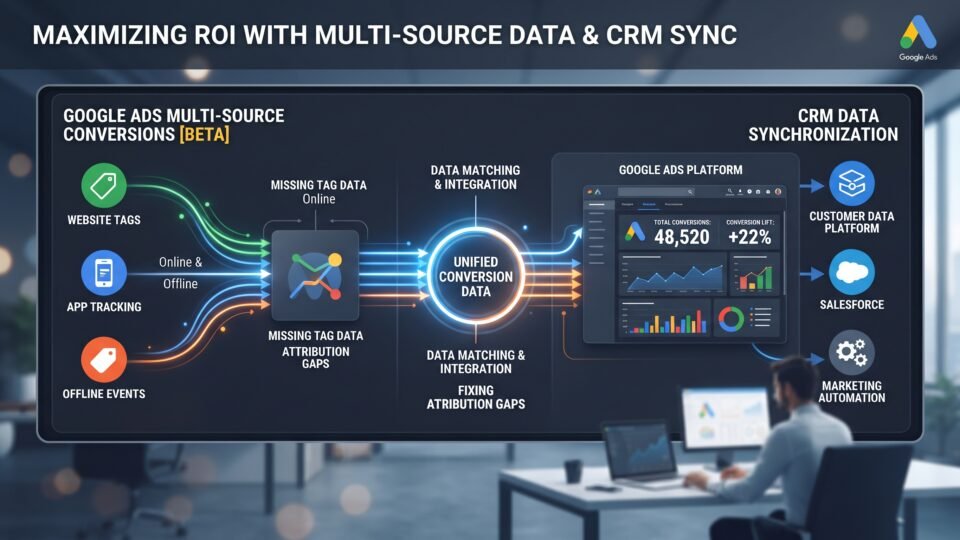
Quick Answer: Multi-Source Conversions is a Google Ads Beta feature that lets you combine web tag data with offline CRM uploads using a unique transaction_id. It automatically fills in missing conversion signals, prevents double-counting, and ensures Smart Bidding models optimize using exact revenue figures. This setup helps advertisers recover lost conversion data caused by ad blockers, browser privacy rules, or incomplete tracking tags.
Why Website Conversion Tags Miss Data
Website conversion tracking faces growing challenges from browser privacy controls, third-party cookie restrictions, and aggressive ad blockers. When a user completes a transaction, local script blockers or iframe form restrictions can stop the conversion tag from firing entirely.
Backend CRM data acts as a complete safety net for your conversion measurement. When website tags fail to capture a sale, your CRM or billing database retains the actual transaction record. Uploading offline records directly into Google Ads fills technical gaps, restores lost signals, and preserves accurate attribution for Smart Bidding algorithms.
How Multi-Source Conversions Works
Google Ads processes primary web tag triggers alongside offline CRM uploads to ensure accurate conversion measurement. The system uses the unique transaction_id to evaluate each offline record and decide how to update your conversion data.
| CRM Upload Scenario | System Action Taken | Smart Bidding & Reporting Impact |
|---|---|---|
Matching transaction_id & complete user data |
Overwrites tag conversion value with CRM value | Refined value accuracy; no duplicate count |
Matching transaction_id & missing tag user data |
Supplements missing web tag data using CRM details | Recovers lost attribution signals seamlessly |
Matching transaction_id with extra click fields (e.g., GCLID) |
Ignores uploaded GCLID; preserves original web tag click data | Prevents conflicting attribution signals |
Non-matching transaction_id (with GCLID or user data) |
Creates a new conversion event and attributes it via GCLID or user data | Recovers conversions completely missed by the website tag |
Important Rules & Limitations Before You Start
Review these technical requirements and operational limits before enabling Multi-Source Conversions:
- 14-Day Non-Biddable Trial Period: Newly configured offline data sources remain in a non-biddable evaluation period for 14 days to analyze match rates safely. Value overrides are also disabled during this trial period and will only begin updating tag values once the trial ends.
- 24-Hour Sync Window: Upload offline CRM transactions within 24 hours of occurrence to maintain precise Smart Bidding optimization.
- Supported Conversion Tags: Compatible exclusively with standard Google tag (
gtag.js) and Google Tag Manager implementations. Google Analytics 4 (GA4) imports and codeless URL event rules are not supported. - Currency and Decimal Format Alignment: Ensure the uploaded values match the website tag’s currency code and decimal formatting (e.g., 10.00 dollars vs. 1000 cents) as well as account settings, because Google does not auto-convert numeric units.
Step-by-Step Setup Guide
Follow these sequential steps to configure Multi-Source Conversions in your Google Ads account:
- Verify
transaction_idin Website Tag: Ensure your primary website conversion tag passes a uniquetransaction_idvalue for every checkout or form confirmation. - Navigate to Data Manager: Log into Google Ads, click Tools and settings, select Data Manager, and locate Connected sources.
- Connect CRM or Offline File: Select your CRM platform (or select automated Zapier/SFTP connection) to stream offline conversion files into Google Ads.
- Map Conversion Attributes: Match your offline dataset fields to Google Ads parameters (
transaction_id, conversion name, conversion time, and value). - Enable Multi-Source Processing: Navigate to Goals > Conversions > Summary, open your target conversion action, and toggle on Multi-Source data processing.
- Check Diagnostics Card: Monitor the Diagnostics tab under your conversion action after 24 hours to review data match rates and system status updates.
Frequently Asked Questions
Will uploading CRM data cause double-counting in my reports?
No. Google Ads uses the unique transaction_id parameter to deduplicate uploads against existing web tag records automatically.
How does this differ from standard Enhanced Conversions?
Standard Enhanced Conversions hashes and sends user-provided data (like email or phone number) at the moment of web conversion. Multi-Source Conversions matches offline backend transactions to existing web conversions after the sale occurs.
Can I use encrypted or hashed customer data in CRM uploads?
Yes. Google Ads supports SHA-256 hashing for user parameters such as email address, phone number, and physical mailing address within CRM data files. Additionally, Google Ads Data Manager now supports encrypted or hashed customer data by default for added security.
Sources:
- Google Ads Help Center: About Data Manager & Offline Conversion Imports
- Google Developers: Tracking Conversions with
transaction_idParameters