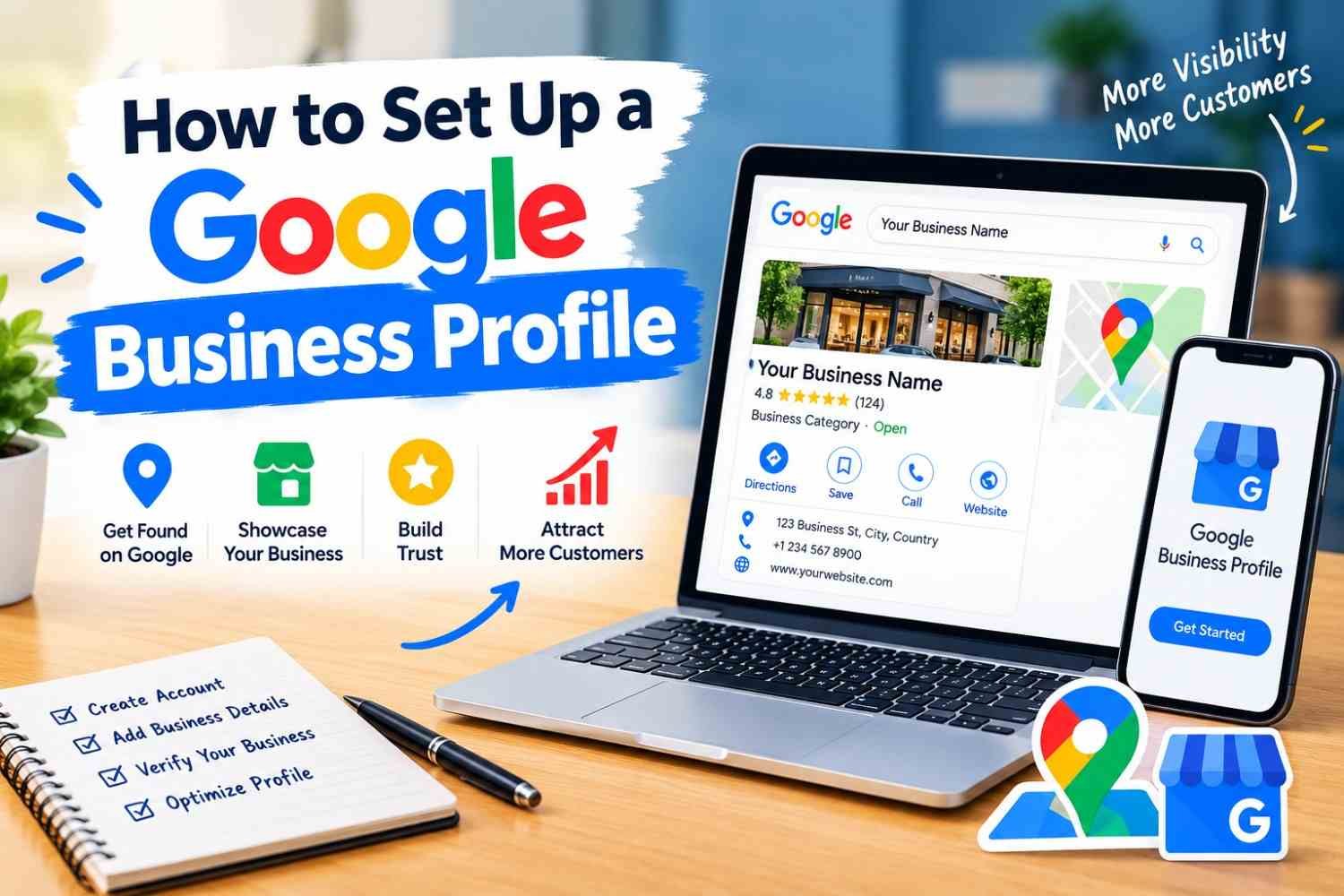
The fastest free way to win local customers is to set up a Google Business Profile. When someone searches for “plumber near me” or “coffee shop in Leeds”, the businesses that appear on the map with photos, reviews and opening hours all have one thing in common: a complete, verified Google Business Profile.
The good news is that it costs nothing and takes less than an hour. In this guide, you will learn exactly how to set up a Google Business Profile step by step, how to verify it, and how to optimise it so your business stands out in local search.
What Is a Google Business Profile?
A Google Business Profile (formerly called Google My Business) is a free listing that shows your business information on Google Search and Google Maps. It can display your business name, address, phone number, website, opening hours, photos, customer reviews and more.
For local businesses, it is often the first thing a customer sees. Many people call, visit or ask for directions straight from the profile without ever opening your website.
Why You Should Set Up a Google Business Profile
- It is completely free: There is no cost to create or manage your listing.
- Appear on Google Maps: A verified profile can show up in the local “map pack” at the top of search results.
- Build trust with reviews: Customer reviews give new visitors confidence to choose you.
- Get more calls and visits: Customers can call you, visit your website or get directions in one tap.
- Works without a website: Even if you do not have a website yet, your profile gives you an online presence.
What You Need Before You Start
Before you set up a Google Business Profile, keep these details ready to save time:
- A Google account (ideally a separate account for your business)
- Your exact business name, as customers know it
- Your business address and postcode (or the areas you serve)
- A business phone number
- Your website URL (if you have one)
- Your opening hours
- A logo and a few good-quality photos of your business
How to Set Up a Google Business Profile: Step-by-Step
Step 1: Sign In or Create a Google Account
Go to the official Google Business Profile page and click Manage now. Sign in with the Google account you want to use for your business. If you do not have one, create a new account. Using a business email (for example, info@yourbusiness.co.uk) makes it easier to manage your listing and share access with staff later.
Step 2: Search for Your Business
Type your business name into the search box. Google sometimes creates a basic listing automatically from public information. If your business already appears, select it and request access to claim it. If it does not appear, choose the option to add your business to Google.
Tip: Always search first. Creating a second listing for the same business can lead to duplicates, which confuses customers and splits your reviews.
Step 3: Enter Your Business Name and Category
Enter your business name exactly as it appears on your shopfront, website and signage. Do not add extra keywords or locations to the name, as this goes against Google’s guidelines and can get your profile suspended.
Next, choose your primary business category. This is one of the most important choices you will make when you set up a Google Business Profile, because Google uses it to decide which searches your business appears for. Pick the most specific category available, such as “Italian restaurant” rather than just “Restaurant”. You can add secondary categories later.
Step 4: Add Your Location or Service Area
Google will ask whether you have a location customers can visit, such as a shop or office.
- If yes: Enter your full address and postcode, then confirm the pin on the map.
- If no: Choose this option if you visit customers instead, such as a cleaner, electrician or mobile mechanic. You can then add the towns, cities or regions you serve, and your home address will stay hidden.
Step 5: Add Your Contact Details
Add your business phone number and website URL. If you do not have a website yet, you can skip this step and add it later. Make sure your phone number is one that customers can actually reach during your opening hours.
Step 6: Verify Your Business
Verification proves to Google that you own or manage the business. Your profile will not fully appear on Search and Maps until it is verified. Depending on your business type and location, Google may offer one or more of these options:
- Video recording: You record a short video showing your location, equipment or proof of management.
- Phone or text: Google sends a code to your business phone number.
- Email: Google sends a code to your business email address.
- Postcard: Google posts a code to your business address, which can take several days to arrive.
- Instant verification: Available in some cases, for example if your website is already verified in Google Search Console.
You cannot choose which methods appear; Google decides based on your business. Once verified, it can take a few days for your profile to show publicly.
Step 7: Add Your Opening Hours
Set your regular opening hours for each day of the week. Keep them accurate, and update them for bank holidays and special dates using the “special hours” option. Few things annoy customers more than arriving at a closed door.
Step 8: Write Your Business Description
You can write a description of up to 750 characters. Explain what you do, who you serve, where you are based and what makes you different. Write naturally for customers, not for search engines.
Example: “Family-run bakery in Manchester baking fresh bread, cakes and pastries daily since 2015. We offer custom birthday cakes, vegan options and local delivery across Greater Manchester.”
Step 9: Upload Photos and Your Logo
When you set up a Google Business Profile, photos make a big difference. Profiles with photos look more trustworthy and get more attention. Add:
- Your logo
- A cover photo
- Photos of the outside of your premises (helps customers recognise you)
- Photos of the inside, your products, your team and your work
Use real, clear and well-lit photos. Avoid stock images, as customers want to see your actual business.
How to Optimise Your Google Business Profile
Once you set up a Google Business Profile, the work does not stop there. A complete and active profile is more likely to rank higher in local search. Here is how to keep improving it.
1. Complete Every Section
Fill in every field Google offers, including attributes (such as “wheelchair accessible” or “free Wi-Fi”), services, products and booking links. The more complete your profile, the better Google understands your business.
2. Get More Google Reviews
Reviews are one of the biggest local ranking factors. Ask happy customers to leave a review after a purchase or job. You can share your review link by email, text, receipt or a QR code in your shop. Never pay for reviews or post fake ones, as this breaks Google’s rules.
3. Reply to Every Review
Thank customers for positive reviews and respond politely to negative ones. A calm, helpful reply to a complaint shows future customers that you care about service.
4. Post Regular Updates
Use the updates feature to share offers, events, new products or news. Regular posts show customers and Google that your business is active.
5. Keep Your Details Consistent
Make sure your business name, address and phone number are exactly the same on your profile, website, social media and online directories. Consistent information builds trust with both customers and Google.
6. Add New Photos Often
Upload fresh photos every month, such as new products, completed projects or seasonal displays. This keeps your profile looking current and engaging.
Want more ways to bring in local customers? Read our guide on how to get more customers for a local business.
Common Mistakes When You Set Up a Google Business Profile
- Stuffing keywords into your business name: This can lead to suspension.
- Choosing the wrong category: Your profile may show up for the wrong searches.
- Using a virtual office or PO box as your address: Google does not allow these as a business location.
- Creating duplicate listings: Always claim an existing listing instead.
- Ignoring reviews: Unanswered reviews make a business look inactive.
- Setting it and forgetting it: Outdated hours or old phone numbers lose customers.
FAQs About How to Set Up a Google Business Profile
Is it free to set up a Google Business Profile?
Yes. It is completely free to set up a Google Business Profile and manage it. Google does not charge for creating, verifying or updating your listing.
How long does it take to set up a Google Business Profile?
Creating the profile usually takes 20 to 30 minutes. Verification can be instant or take a few days, depending on the method Google offers you. A postcard can take longer to arrive.
Can I set up a Google Business Profile without a physical address?
Yes. If you serve customers at their location, you can set up a service-area business. You add the areas you serve, and your address stays hidden from the public.
Can I set up a Google Business Profile without a website?
Yes. A website is optional. Your profile can still show your contact details, hours, photos and reviews, so customers can reach you directly.
Why is my Google Business Profile not showing on Google?
The most common reasons are that the profile is not yet verified, it was recently verified and is still being processed, or it has been suspended for breaking Google’s guidelines. Check your profile status in your Google Business Profile account.
How do I rank higher on Google Maps?
Choose the right category, complete every section, collect genuine reviews, reply to them, post updates regularly and keep your details consistent across the web. Distance from the searcher also plays a part, which you cannot control.
Final Thoughts
If you run a local business, there is no reason not to set up a Google Business Profile. It is free, quick and one of the most effective ways to get found by nearby customers on Google Search and Maps. Follow the steps above, verify your listing, and keep it updated with fresh photos, posts and reviews.
Once your profile is live, combine it with other marketing to grow even faster. Our guide on how to promote a small business online is a great next step.